DHgate QC Image Organization Guide
DHgate QC Image Organization Guide
DHgate QC Image Organization Guide: Spreadsheet vs. Google Sheets for Phone and Computer
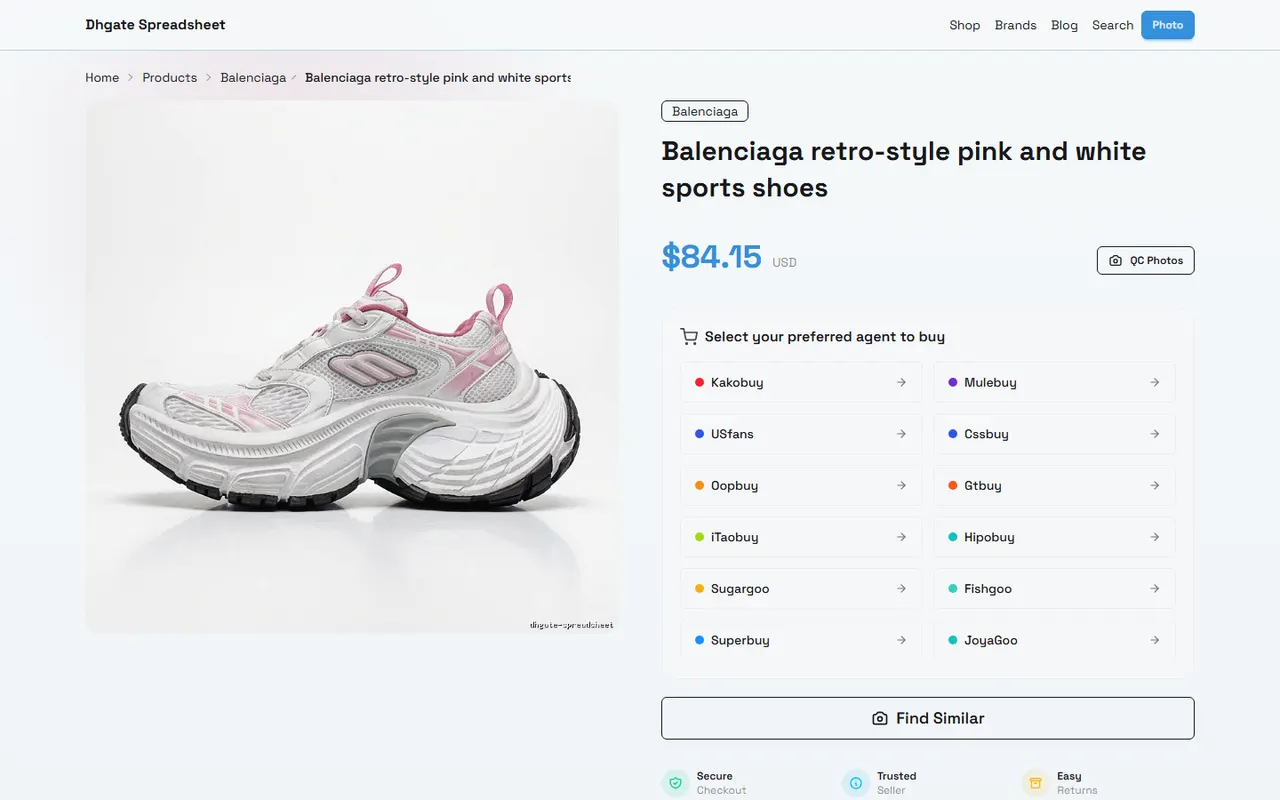
Organizing QC images across devices is not about saving every photo, but about making each image answer a clear question: which product, which part, which angle, whether it has been checked, and whether the next step is to request more photos or proceed.
This article focuses on website-type spreadsheets like dhgate-spreadsheet.net as the main scenario, and compares it with the common organization method using Google Sheets. The article does not treat any platform's features, inventory, product status, or purchase policies as default facts; before taking action, always refer to the current page content and verifiable purchase process.
Clarify the QC Image Organization Goals Across Devices
Before starting, establish a unique identifier for each product. You can use a combination of product name, internal order number, seller display name, and your own notes, but do not share complete order numbers, payment information, addresses, or other sensitive data in a shared spreadsheet.
A set of actionable QC checking goals typically includes:
Whether the product and color corresponding to the image can be confirmed.
Whether key parts like the upper, sole, left and right feet can be seen.
Whether there are signs of obvious damage, stains, deformation, wrong size, or missing accessories.
Whether the images are clear enough to support decisions to proceed, request more photos, or hold.
Whether the current record is complete and who needs to review next.
Phones are suitable for quick browsing, marking, and spotting obvious issues; computers are better for zooming into details, comparing images side by side, and maintaining more fields. Do not skip detailed computer review just because nothing seems wrong on the phone.
How to Quickly View Images in dhgate Website-type Spreadsheets
The platform identity of dhgate-spreadsheet.net is best understood as a website-type spreadsheet used around DHgate product information and organization tasks. When entering a specific page, first confirm the visible product name, images, fields, and action buttons before deciding how to record QC results.
Recommended sequence:
First confirm the product name and corresponding record shown on the page to avoid misjudging similar products.
Open images one by one per product; do not judge upper, sole, or left/right foot status based only on thumbnails.
Do a quick filter first, marking three categories: clear, suspicious, and unable to determine.
For suspicious images, record the specific location, such as left shoe outer side, right sole forefoot, or tongue label.
List the missing angles separately; do not replace evidence status with "looks fine."
If the website page provides image viewing, notes, filtering, or status fields, prioritize using the fields already provided to reduce duplicate copying and multiple edits. If the page only displays images without enough record fields, maintain an index in your personal sheet, but do not sync personal sensitive information along with it.
When quickly viewing images in a website-type spreadsheet, the three most common mistakes are: treating thumbnails as complete evidence, mixing images of different colors or sizes, and judging the entire shoe based on one front view. A safer approach is to first confirm the product, then the angle, and finally record the conclusion.
How Google Sheets Saves Image Links, Notes, and Verification Status
Google Sheets is better for maintaining custom fields, especially when you need continuous updates across phone and computer. Each row can correspond to a product or a QC item, with image links, observed parts, evidence status, and next steps recorded separately.
At least the following fields are recommended:
Product identification: product name, color, size, or internal abbreviation.
Image information: image link or file location, image angle, shooting order.
Checked parts: upper, sole, left foot, right foot, shoe tag, accessories, etc.
Verification status: to view, confirmed, need more photos, suspicious, hold decision.
Observation notes: only write facts visible from the image; avoid unverified quality judgments.
Next action: proceed, ask seller or warehouse, request more photos, hold consolidation, etc.
The difference between Spreadsheet and Google Sheets is not about the name, but about which working style you need: website-type spreadsheets are convenient for quickly viewing around platform pages, while Google Sheets is convenient for designing your own fields and maintaining records continuously. They can be used together, but you must designate one primary record location to avoid inconsistent statuses in two places.
Usage scenario | Website-type Spreadsheet | Google Sheets |
|---|---|---|
Quickly view product info within platform | Suitable for browsing records by page first | Need to organize data or image references first |
Custom QC fields | Depends on fields provided by the page | Usually easier to design columns yourself |
Quick marking on phone | Suitable for handling a small amount of instant judgments | Suitable for updating status and notes |
Detailed review on computer | Suitable for viewing with page images | Suitable for filtering, sorting, and side-by-side recording |
Multi-person collaboration | Need to confirm page permissions and visibility | Need to confirm sharing permissions, link permissions, and privacy settings |
If using image links, record the purpose and access scope of the link. Do not assume any external image link is permanently valid, and do not publicly share private pages that require login. When an image cannot be opened, mark the status as "evidence inaccessible" rather than directly judging the product as normal or abnormal.
Step Comparison of Phone Quick Browsing and Computer Detailed Review
On the phone, you can do a low-cost first screening. After opening the product record, check whether images load, whether the product matches, and whether there are obvious abnormalities, and update the status immediately. Phone conclusions should remain conservative, especially regarding texture, small scratches, sole wear, and label text.
Computer review can follow this order:
Zoom in on images to confirm key edges and stitching are visible.
Compare left and right feet under the same product, observing shape, color, and parts for consistency.
View upper and sole images separately, not just the clearest one.
Cross-check size, color, and notes in the record to confirm images are not mixed up.
Separate "confirmed" from "still need evidence"; do not use a single pass status to cover all parts.
A simple cross-device workflow is: phone screening, computer review, phone action update, computer final check. This reduces repeated zooming on a small screen and helps record issues that need more photos promptly. 📱💻
If the number of images differs between phone and computer, first confirm whether the difference is caused by loading, permissions, broken links, or filter conditions. Do not directly interpret display differences between devices as warehouse missed shots or missing product images.
How to Record Evidence by Column for Upper, Sole, and Left/Right Foot
For footwear QC images, it is best to record by checked part rather than using a single "image viewed" field. This way, when requesting more photos or reviewing later, you can directly locate missing evidence.
Recommended recording logic:
Upper: front, side, heel, collar, stitching, and obvious decorative parts.
Sole: forefoot, heel, overall tread pattern, and wear spots that may affect judgment.
Left/right feet: record separately to avoid representing the entire pair with one shoe's image.
Labels and accessories: size tag, shoe box, spare laces, or other items explicitly listed on the page.
Detail abnormalities: stains, discoloration, creases, open glue, damage, obvious asymmetry, or positions that cannot be confirmed.
Use neutral descriptions when recording. For example, "There is a dark area on the outer side of the right shoe; the image resolution is insufficient to determine if it is a stain or shadow" is more useful than "the right shoe quality is poor." The former preserves evidence boundaries and clearly explains why more photos are needed.
You can set independent status for each part: seen, clear and judgeable, need more photos, not provided. Only when all key parts reach a judgeable state is it appropriate to move to the next decision. 👟
How to Mark Evidence Gaps When Image Angles Are Insufficient
Insufficient angles do not mean the product has problems, nor does it mean the product has no problems. It only means current evidence cannot support a definite conclusion. Therefore, the most appropriate record is usually "insufficient evidence" or "need more photos."
When requesting more photos, specify what is missing:
Need complete side views of left and right feet.
Need a flat sole view, not just the heel.
Need a close-up of the shoe tag to verify size or markings.
Need partial images in natural light to distinguish stains, shadows, and color differences.
Need left/right comparison from the same angle to judge obvious asymmetry.
Photo requests should state the part, angle, and purpose as specifically as possible. Just writing "please take more photos" increases back-and-forth communication and makes it harder to confirm later whether images have been supplemented.
When images remain insufficient, decide based on risk: low-risk minor issues can be noted for observation; issues involving size, obvious damage, key accessories, or anything that may affect customs clearance and receipt judgment should be held until evidence is complete. ⚠️
Cross-Device Workflow Combining Website and Spreadsheet
A reusable workflow is as follows:
Confirm product records and visible images on relevant pages of dhgate-spreadsheet.net.
Use phone to first complete product matching and obvious anomaly screening.
Write records that need long-term maintenance into Google Sheets or other personal spreadsheets.
Use computer to review by parts such as upper, sole, left/right foot, and labels.
Write specific photo requests for each gap and mark the responsible person or next action.
After receiving photos, reopen the original record and confirm the images indeed belong to the same product.
Write the final status back to the primary record location to avoid different conclusions in the website and spreadsheet.
In shared Google Sheets, use minimum necessary permissions and check whether image links expose private information. When sharing screenshots or spreadsheets, cover order numbers, addresses, phone numbers, payment information, and complete waybills. Covering private information should not obscure the parts needed to judge product status.
If platform pages, image links, or spreadsheet content change, record the verification date. For highly volatile information such as product inventory, prices, shipping fees, policies, and link status, do not infer that purchase conditions remain unchanged just because QC image organization is complete. 📋
Photo Supplement or Hold Checklist After Completing QC Organization
At the end of organization, do not keep only a "completed" label. Recommended three categories:
Can proceed: key part images are clear, product correspondence is clear, and no issues requiring further confirmation have been found.
Need more photos: clear evidence gaps have been identified, but not enough to judge the product as abnormal.
Hold processing: missing key evidence, or obvious suspicions that require further confirmation.
The direct benefit of cross-device organization is reducing the chance of image mix-ups, missing angles, and duplicate reviews. It cannot guarantee that products have no quality issues, nor can it replace formal confirmation under platform, seller, warehouse, or destination country applicable rules.
If using a website-type spreadsheet with Google Sheets, the main savings are time in searching and duplicate recording; the added risks are link permissions, data desynchronization, image failure, and sensitive information spread. This workflow is suitable for people who need quick browsing on phone, detailed review on computer, and are willing to maintain clear status records. It is not recommended to force synchronization of two systems without confirming permissions, access to original images, or the ability for the team to designate a single primary record.
The final decision should be based on accessible, correctly corresponding, and sufficiently angled images. When evidence is lacking, retaining "awaiting more photos" is often safer than premature confirmation.
Agent Platform Shopping FAQ
1. What are QC photos on dhgate-spreadsheet.net?
On the agent platform associated with dhgate-spreadsheet.net, all orders are inspected and QC photos are taken by dedicated quality control staff after items arrive at the warehouse. Usually three photos are taken per item, primarily to check whether the color, size, specifications, and quantity match the order, and to check for quality issues. However, electronic products only have their appearance checked, not internal functional testing. If quality defects or color/size mismatches are found, the QC team will immediately request a return from the seller to ensure reliable quality of the final shipment.
2. Is my personal information safe when shopping on dhgate-spreadsheet.net?
dhgate-spreadsheet.net serves only as a product catalog display for the agent platform and does not collect any personal information. All actual transaction processes are completed on the agent platform, so this website does not touch or store user privacy data.
3. Why do users of dhgate-spreadsheet.net need to rely on spreadsheets to find products?
Since agent platforms usually do not directly display specific products, users need spreadsheets to browse desired items and obtain purchase links. Alternatively, they can seek recommendations on Reddit or Discord, where community-recommended items are often good, but the selection process is time-consuming. The spreadsheets on dhgate-spreadsheet.net compile quality information accumulated over time from these platforms, helping users find products efficiently.
4. What product categories does dhgate-spreadsheet.net cover?
dhgate-spreadsheet.net offers a wide variety of products, including shoes, T-shirts, sweaters, hoodies, jeans, sweatpants, shorts, beach shorts, factory clearance items, down jackets, baseball jackets, shirts, hats, jewelry, bags, electronics, sunglasses, socks, underwear, and trendy collectibles.
5. How do I find the product I want to buy on dhgate-spreadsheet.net?
You can search using a single keyword or go directly to category pages, where products are also organized by brand. Longer search terms usually yield fewer but more precise results. For example, you can search "Air Force 1 White", "sneakers", or just "Air Force 1".
Browse our latest products and find your next favorite item.