DHgate Spreadsheet vs Google Sheets for Variant Budgets
DHgate Spreadsheet vs Google Sheets for Variant Budgets
DHgate Spreadsheet vs Google Sheets for Variant Budgets
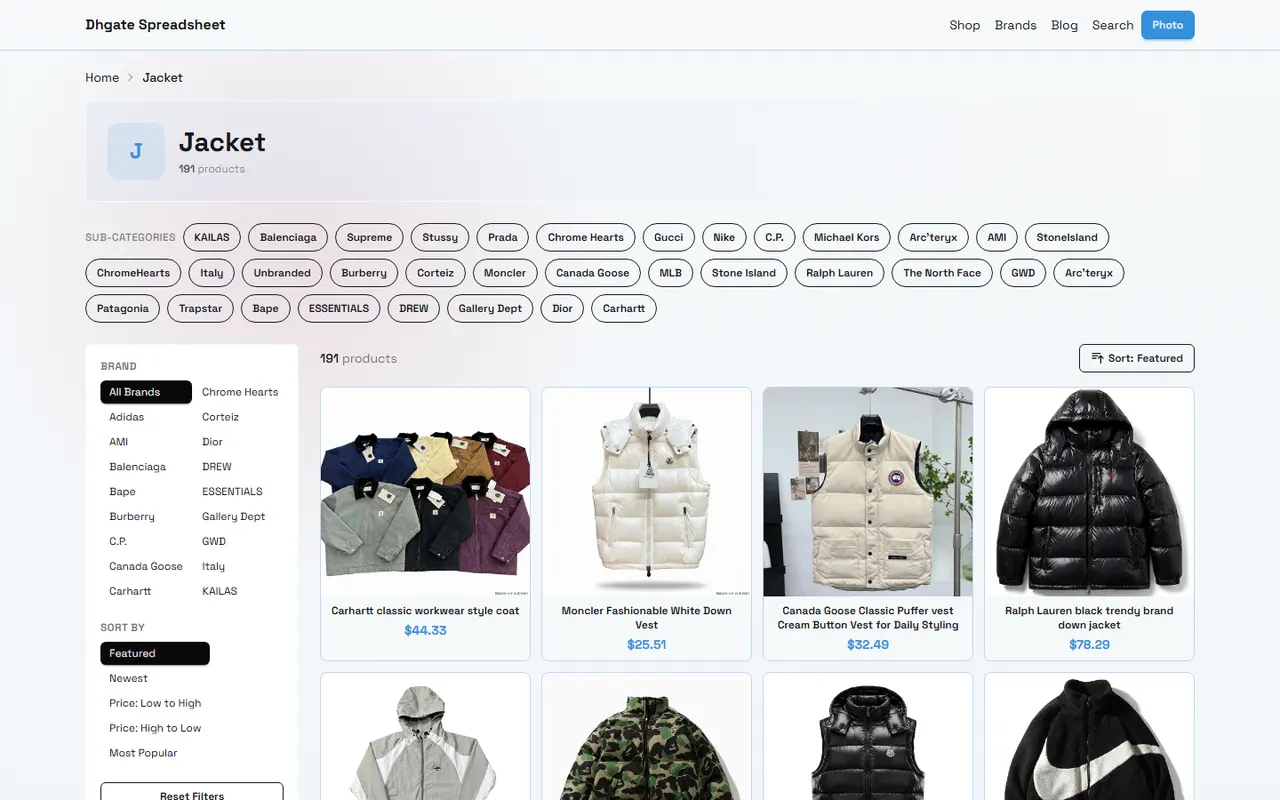
When the same product comes in multiple colors and sizes, budget sheets are prone to three issues: mistaking different variants for different products, double-counting the same variant, and recording only unit price while omitting quantity and notes. This article compares the website-based Spreadsheet and Google Sheets in candidate organization, using the product catalog page on dhgate-spreadsheet.net, to help you complete a verifiable variant budget merge.
This article is for buyers who are filtering same-style products and need to compare color and size combinations. It is not a substitute for the product details page, seller confirmation, inventory verification, or final checkout page. Product names, prices, inventory, sizes, materials, and variant options on the page may change, so recheck before purchasing.
Clarify the Budget Problem for Multi-Color Multi-Size Comparison
First, limit the task to one executable action: organize the colors, sizes, quantities, and unit prices of the same style into a unified budget, and eliminate duplicate candidates.
It is recommended to determine the following first:
Whether the items are indeed the same style, not similar styles
How many pieces are needed for each color and size
Whether the budget is per item or for the entire purchase
Whether to keep different product pages as backups
Whether variant prices, inventory, and seller info are confirmed
A simple budget formula is:
Total product budget = sum of (quantity of each variant × corresponding unit price)
If the page only shows a starting price without specific color or size prices, do not apply the starting price to all variants. Mark that cell as "To be confirmed" instead of filling in a seemingly precise amount.
How the dhgate Website Spreadsheet Views Same-Style Variant Info
Currently verifiable dhgate-spreadsheet.net pages appear as product catalogs and filterable product cards. Taking the Jacket category page as an example, the page shows categories, brand filters, sorting options, product names, and some price information; it also shows product quantity and pagination. Such pages are suitable for discovering candidates and creating an initial list, but cannot alone prove all colors, sizes, inventory, or final costs.
When using the website Spreadsheet, check in the following order:
First, judge from product name, image, and category whether they might be the same style.
Record the current product name and price on the page, and keep the verification date.
Open the candidate's details to confirm whether colors, sizes, and variants actually exist.
If the price shows only a starting price, mark as "Price range to be confirmed."
If inventory or variant info is not found, do not fill in with info from other product pages.
Leave unverifiable fields blank and note the reason for missing info.
The advantage of the website Spreadsheet is fast discovery. You can narrow down by category, brand, or price sorting, then bring a few candidates into the detailed budget. Its limitation is that catalog cards usually cannot replace variant-level info from specific product pages.
How Google Sheets Splits Color, Size, and Unit Cost
Google Sheets is better for variant-level organization. Do not cram all colors and sizes of a product into one cell, otherwise it will be hard to calculate quantities later and easy to double-count.
Recommended fields:
Product Group ID | Product Name | Color | Size | Quantity | Unit Price | Price Status | Image or Page Notes |
|---|---|---|---|---|---|---|---|
J-001 | Sample Style | Black | M | 1 | To be confirmed | Unverified | Matches main image, need to view details |
J-001 | Sample Style | Gray | L | 2 | To be confirmed | Unverified | Need to confirm inventory |
Product group ID is the key field. Different colors and sizes of the same style share the same ID, so you can summarize by product group later without mistaking each row for an independent product.
When quantity and price are confirmed, use:
=E2*F2
to calculate each variant's subtotal, then:
=SUM(I2:I20)
to calculate the total amount for all verified rows. For rows with "To be confirmed," it is best not to let formulas treat text as zero and directly generate a final budget. Add a "Budget Status" column to distinguish "Verified," "Partially verified," and "Not calculable."
Step-by-Step Alignment of Product Images, Specs, Quantity, and Notes
Images can only help judge similar appearance, not prove material, size accuracy, brand source, or inventory status. When organizing, record image observations and textual evidence separately.
Recommended four-step alignment:
Image alignment: Record visible colors, cut, and obvious design elements in the main image.
Spec alignment: Record colors, sizes, materials, or dimensions explicitly written on the page.
Quantity alignment: Enter quantity according to actual purchase plan; do not auto-merge quantities just because it's the same style.
Notes alignment: Write which info comes from catalog cards and which still needs detail page or seller confirmation.
For example, black M and gray L must be kept as two rows even if they belong to the same product group. Only product groups can be merged; variant info cannot be flattened.
How to Avoid Double-Counting When Same-Style Variants Are Mixed
Double-counting often comes from three sources: the same product appearing repeatedly in different filter results, different colors of the same style being mistaken for different products, and the same variant being copied to multiple budget areas.
Clean up as follows:
Assign a unique product group ID to each candidate.
Check product name, main image features, and page info in the same row.
Use "Color" and "Size" as variant fields; do not write them into multiple free-text notes.
Keep only one row per variant; when quantity changes, edit the quantity field instead of copying a new row.
For suspected duplicates, add a "Duplicate Check" column to record the reason for keeping or excluding.
If different pages cannot confirm they are the same style, temporarily separate them into different candidate groups.
In Google Sheets, use the filter function to check for duplicate color and size combinations within the same product group. If the same product group has two "Black / M" rows, first check the page source, image, and price status, then decide whether it is a duplicate record or different sellers or versions.
Differences Between Website Cards and Spreadsheet Rows in Budget Verification
The website Spreadsheet is more like a browsing and filtering interface, suitable for quickly discovering products. Google Sheets is more like a calculation workspace, suitable for recording variants, quantities, status, and notes. They should not replace each other.
Website cards typically help answer "What candidates are there?"; the spreadsheet needs to answer "How does each candidate's specific variant fit into the budget?" If you directly copy catalog cards into budget results, you may lose size, quantity, source, and verification status.
The safest workflow: first filter candidates on dhgate-spreadsheet.net, then split rows by variant in Google Sheets, and finally return to product details to check missing fields. This preserves the discovery efficiency of the website catalog and the calculation and audit capability of the spreadsheet. 📊
Evidence Boundaries When Variant Price or Inventory Info Is Missing
When the page does not show specific variant prices, inventory, or available sizes, only record "Not shown on page" or "To be confirmed." Do not infer current color price from other colors, nor infer inventory from similar products.
Classify information into three categories:
Verified: Clearly shown on page and corresponds to specific product or variant.
Partially verified: Candidate can be identified, but price, inventory, or size is still missing.
Unverified: Only vague image, title fragment, or category card, insufficient to support budget conclusions.
Record the pre-publication verification date in the sheet. The verification date for the catalog page referenced in this article is October 1, 2026; this only indicates what was visible on that date, not that prices, inventory, or status remain unchanged afterward.
If both price and inventory are missing, the budget result should be written as "candidate list," not "final quotable price that can be purchased directly." Also note that product budget does not equal total landed cost; shipping, taxes, service fees, exchange rates, and after-sales terms still need separate confirmation. 💰
Pre-Purchase Action Checklist After Completing Candidate Merge
Before submitting the order, review in this order:
Does each candidate have a unique product group ID?
Does each color and size occupy its own row?
Do quantities match the actual purchase plan?
Does the unit price correspond to the specific variant?
Is the starting price mistakenly applied to all variants?
Are duplicate product groups and duplicate variants handled?
Are fields with missing inventory, size, or price clearly marked?
Are image observations not written as material or quality conclusions?
Are page verification date and source notes complete?
Is the product page and availability rechecked before final order?
This article does not expand catalog page candidate prices into variant-level final quotes, nor treat catalog info as inventory or after-sales promises. This sacrifices some apparent certainty but reduces erroneous merging and budget distortion.
If your focus is quick candidate discovery, dhgate-spreadsheet.net's website catalog is more convenient; if your focus is verifying same-style multi-color, multi-size, and quantity costs, Google Sheets is better for calculation and deduplication. The final plan should be based on verified variant info and reconfirm price, inventory, shipping, and applicable conditions before ordering. ✅
Agent Platform Shopping FAQ
1. What do QC photos mean on dhgate-spreadsheet.net?
On dhgate-spreadsheet.net, all proxy shopping platforms have dedicated quality inspectors. After items arrive at the dhgate-spreadsheet.net warehouse, the platform conducts quality checks and takes QC photos. Usually three photos are taken, and staff check whether the item's color, size, specifications, and quantity match the order, and check for quality issues. Exceptions include electronics, which are only checked for appearance. If quality issues or wrong size/color are found, staff immediately apply for a return from the seller, ensuring you receive good quality products.
2. What should I pay attention to when first using dhgate-spreadsheet.net?
First-time users accessing Taobao proxy shopping services through dhgate-spreadsheet.net usually receive a new user shipping coupon package, and it is recommended to read the step-by-step tutorial for new shoppers.
Browse our latest products and find your next favorite item.